
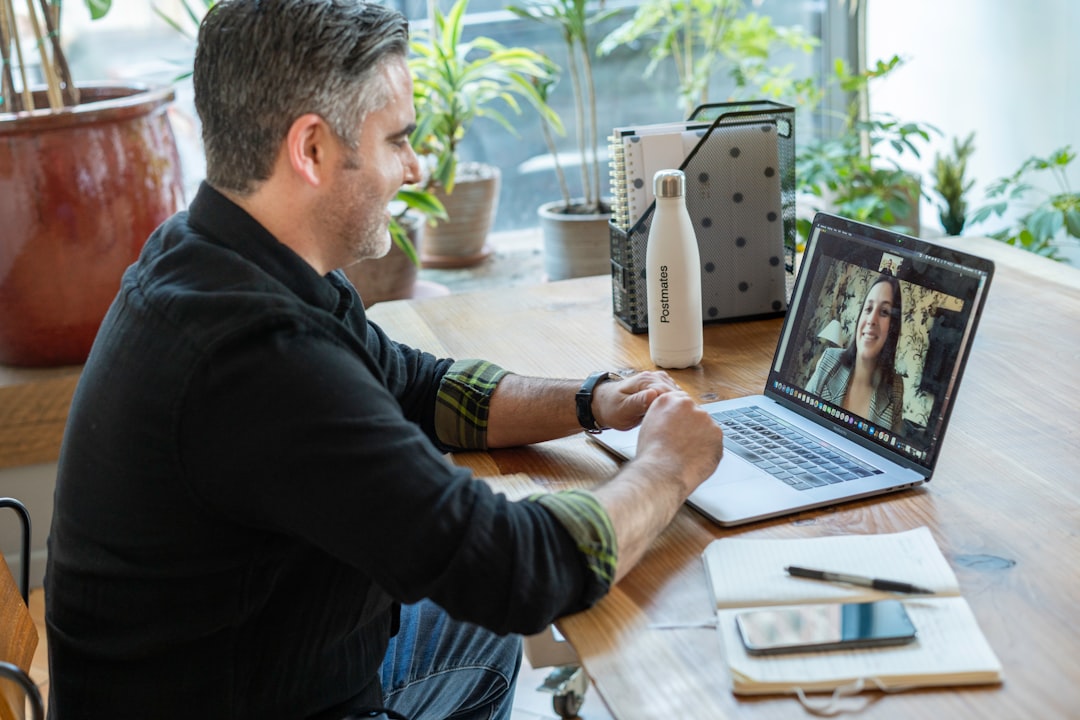
What home office setup do you need for remote work?
At minimum: a dedicated workspace with a door you can close, a reliable internet connection (minimum 25 Mbps symmetric for video calls), a webcam or external camera, a quality microphone or headset, adequate front-facing lighting, and a monitor or screen large enough to work effectively. Ergonomic furniture prevents physical strain that can reduce productivity over time.
Your home office setup is not just a workspace — it is the infrastructure that determines your daily productivity and how professionally you present yourself on video calls. Employers who are evaluating you for a remote role are assessing whether you can create a professional, productive environment. Many remote work interview questions are designed to probe exactly this, and being able to describe a deliberate, well-designed setup signals that you take remote work seriously.
The Physical Workspace
Dedicated vs. Shared Space
The most important factor in remote work productivity is having a dedicated workspace that you can associate with work and mentally leave at the end of the day.
Ideal: A room with a door that you can close during focus time.
Acceptable: A dedicated desk in a quiet area of your home that you consistently use only for work.
Problematic: Working from your couch, bed, or kitchen table — these spaces are associated with non-work activities and make the psychological work-rest boundary harder to maintain.
The physical separation matters for two reasons: it reduces distractions during work, and it enables you to "leave work" mentally when you leave the space at the end of the day.
Ergonomics for Long-Term Productivity
Physical discomfort accumulates over time and becomes a real productivity constraint.
| Equipment | Standard Recommendation |
|---|---|
| Chair | Adjustable lumbar support; hips at 90 degrees; feet flat on floor |
| Desk height | Elbows at 90 degrees; wrists straight when typing |
| Monitor height | Top of screen at eye level; 20-24 inches from face |
| Keyboard/mouse | External keyboard and mouse if using a laptop |
| Lighting | Natural light to the side or front; not behind the monitor |
Internet and Technical Infrastructure
Connection Speed Requirements
| Work Type | Minimum Speed | Recommended Speed |
|---|---|---|
| Email and chat only | 5 Mbps | 10 Mbps |
| Regular video calls (HD) | 10 Mbps | 25 Mbps |
| Screen sharing and video | 25 Mbps | 50 Mbps |
| Multiple simultaneous video calls | 50 Mbps | 100+ Mbps |
All speed recommendations are for upload (your outgoing connection) — many home connections have asymmetric speeds with faster download than upload.
Wired vs. WiFi: Ethernet connections are significantly more reliable than WiFi for video calls. If your workspace is not near your router, a powerline ethernet adapter or WiFi extender may be necessary.
Backup: For critical calls, have a backup. Your phone's mobile hotspot is a reasonable emergency backup for 30-minute calls.
Audio Equipment
Audio quality has more impact on call quality than video quality. The hierarchy:
- USB condenser microphone or dedicated headset: Best audio quality, eliminates background noise
- Quality wired earbuds with microphone: Good quality, portable
- Wireless earbuds (AirPods/equivalent): Good quality but potential for connection drops
- Built-in laptop microphone: Acceptable for casual calls; professional calls benefit from an upgrade
Background noise: A microphone upgrade is less important than background noise management. A high-quality microphone in a noisy environment will sound worse than a basic microphone in a quiet room.
Video Equipment
Camera Options
Your webcam determines how you appear in video calls — which influences perception in every internal meeting, client call, and interview.
| Camera Type | Quality | Best For |
|---|---|---|
| Built-in laptop camera | Adequate | Casual calls; not ideal for professional video |
| Dedicated USB webcam (1080p) | Good | Regular professional calls |
| DSLR or mirrorless via capture card | Excellent | High-production-value calls, streaming |
| External iPhone/Android as webcam | Very good | High quality if properly mounted |
Lighting for Video
Lighting has more impact on your on-camera appearance than camera quality.
Front lighting: A light source (lamp, window) in front of your face. This illuminates your face evenly and is the professional standard.
Side lighting: Creates interesting but sometimes harsh shadows. Acceptable in some setups.
Back lighting: A window or light source behind you creates a silhouette effect. Avoid.
Ring lights: Provide even, flattering front lighting and are popular for this reason. The main downside is visible ring reflections in glasses.
Describing Your Setup in Remote Interviews
When asked about your home office setup, be specific:
"I have a dedicated office room with a door. My setup includes a 34-inch curved monitor at eye level, an external USB microphone, a 1080p webcam on a small tripod, and a ring light positioned about three feet in front of me. My internet is 500 Mbps fiber on a wired ethernet connection. I have never had a dropped call or audio issue in a professional context."
This level of specificity signals professional intentionality and provides the interviewer with confidence that remote collaboration with you will be technically smooth.
Frequently Asked Questions
How much should I expect to spend on a good home office setup? A functional professional setup can be assembled for $200 to $500: a decent webcam ($80), a USB headset or microphone ($50-150), a ring light ($30-60), and an ethernet adapter if needed. A high-quality setup with an ergonomic chair, external monitor, and professional camera runs $1,500 to $3,000. Many companies provide equipment stipends for remote employees.
Does my home office setup affect hiring decisions? For remote roles, yes. A visibly unprofessional setup (cluttered background, poor audio, distracting lighting) signals that the candidate has not invested in their remote work environment. Most interviewers will not explicitly mark it against you, but it creates a background impression that accumulates.
What is the minimum setup for a professional video call? At absolute minimum: clean background, adequate front-facing light so your face is clearly visible, working audio without significant echo or background noise, and a stable internet connection. Everything beyond this is improvement, not requirement.
References
- Bloom, N., Liang, J., Roberts, J., & Ying, Z. J. (2015). Does working from home work? Quarterly Journal of Economics, 130(1), 165-218.
- Ergonomics Research Institute. (2022). Home Office Ergonomic Guidelines for Remote Workers. ERI Publications.
- GitLab Inc. (2023). Remote Work Equipment and Home Office Setup. GitLab Handbook.
- Buffer Team. (2023). State of Remote Work Report: Tools and Setup. Buffer.
- Newport, C. (2016). Deep Work: Rules for Focused Success in a Distracted World. Grand Central Publishing.
Frequently Asked Questions
How much should I expect to spend on a good home office setup?
A functional professional setup can be assembled for \(200 to \)500: a decent webcam, USB headset or microphone, ring light, and ethernet adapter if needed. A high-quality setup with ergonomic chair, external monitor, and professional camera runs \(1,500 to \)3,000. Many companies provide equipment stipends for remote employees.
Does my home office setup affect hiring decisions?
For remote roles, yes. A visibly unprofessional setup — cluttered background, poor audio, distracting lighting — signals that the candidate has not invested in their remote work environment. It creates a background impression that can accumulate over the interview.
What is the minimum setup for a professional video call?
At absolute minimum: clean background, adequate front-facing light so your face is clearly visible, working audio without significant echo or background noise, and a stable internet connection. Everything beyond this is improvement, not requirement.